


How to Print Unofficial Report Cards and Assignments from Schoology
This guide walks you through saving your student’s grades and submitted work from Schoology, step by step. Whether you’re changing a course, dropping one, or simply reaching the end of the academic year, here’s how to keep a complete record before access is removed.
In this guide
Course Changes
Please print all grades and homework assignments you wish to retain before course changes or the end of the academic year. Access to grades and assignments will be removed once a course drop is finalized.
For full details, review the relevant policies:
Printing Grades for Live Courses (Changing/Dropping)
Log in to Schoology
Access your parent Schoology account here using the same credentials you use for your Parent Landing Page. For login assistance, refer to the VSA Technology Handbook, “Logging in as a Parent” section.
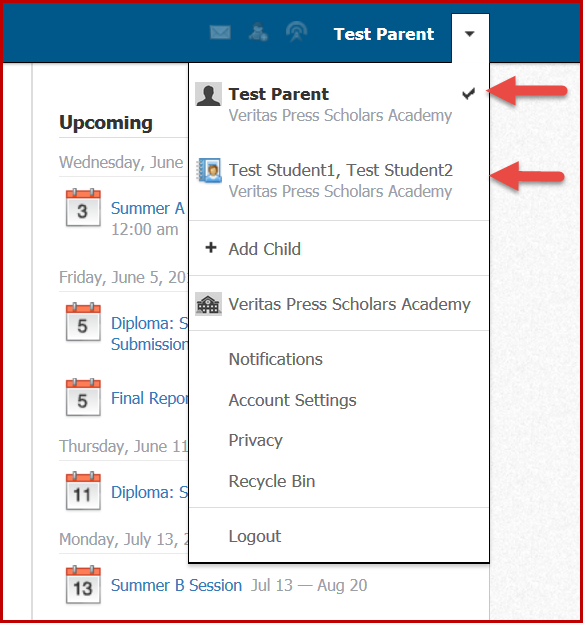
The parent names should be listed at the top, and the student names should be listed below.
If it does not look like this, log out and log in as a parent.
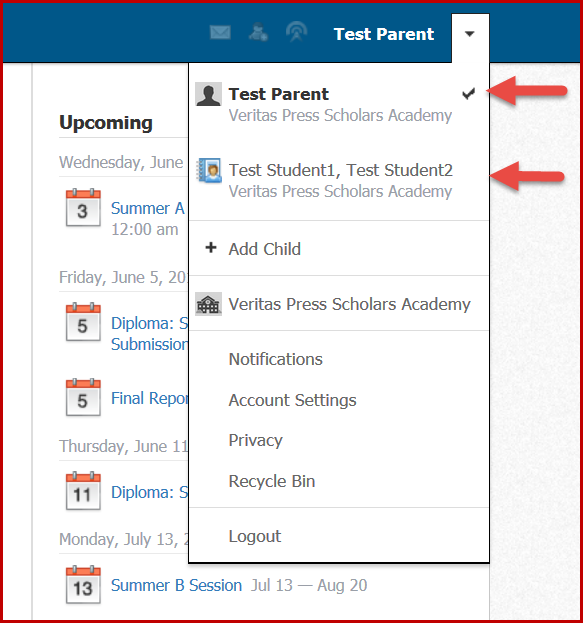
Select Student
Click on the student’s name to view their report card.
The student’s name should appear in the top right corner of the page.
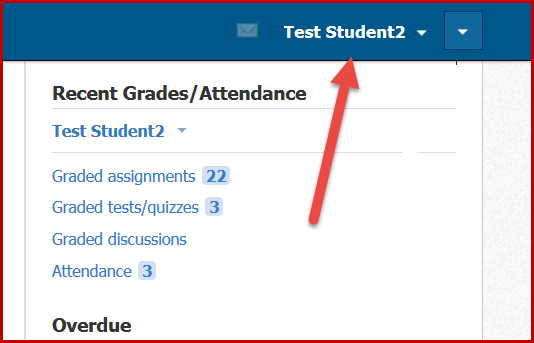
Access Grade Report
Click on “Grades” and then select “Grade Report” from the drop-down menu.

View Course Details
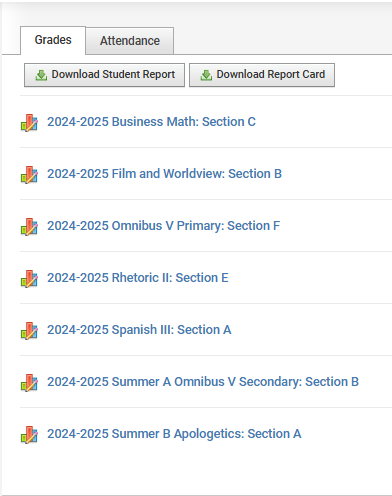
Click on the title of the course you intend to change or drop.
Expanding the course details will reveal categories such as Homework, Quizzes, Tests, Midterm, Final Exam, Relevant Class Participation, and Comments. This comprehensive breakdown is available for printing as a record.
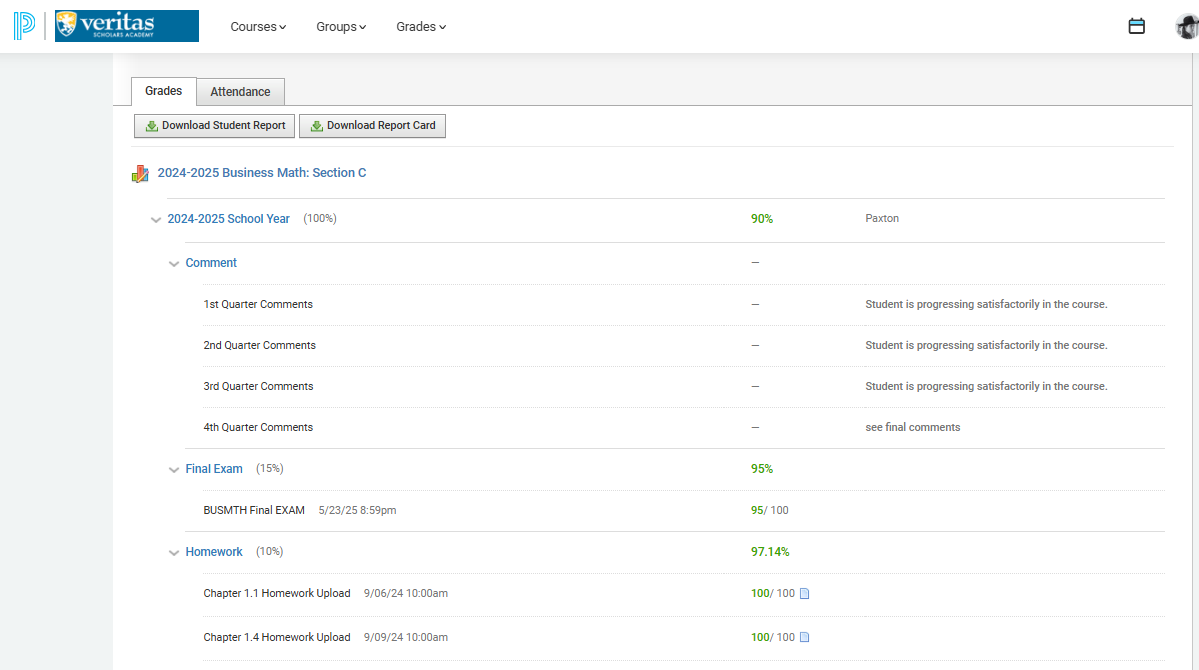
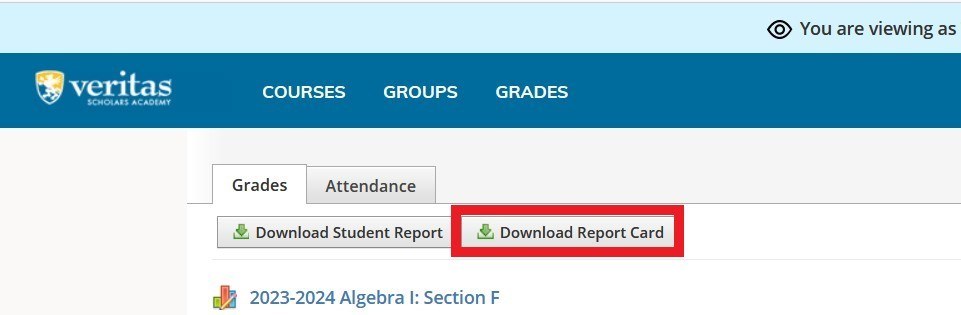
Download Report Card
Click on “Download Report Card.”
Select Grading Period
Choose the desired grading period(s) for the report.
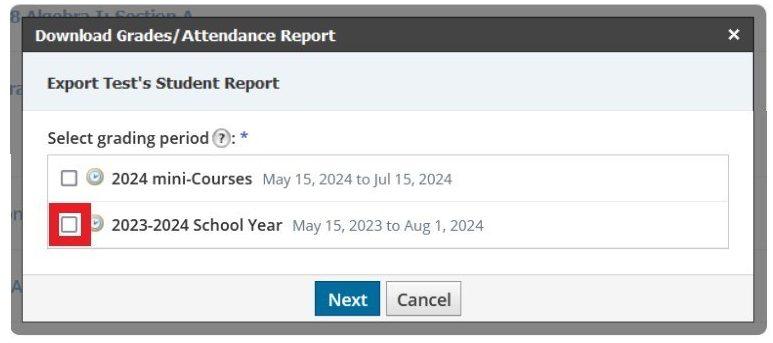
Only currently active grading periods where the student is enrolled in a class will be available. Grading periods that are archived or have closed will not be displayed.
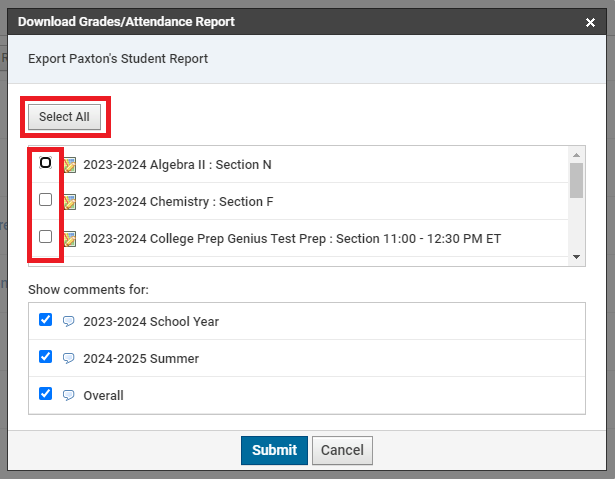
Select Live Courses
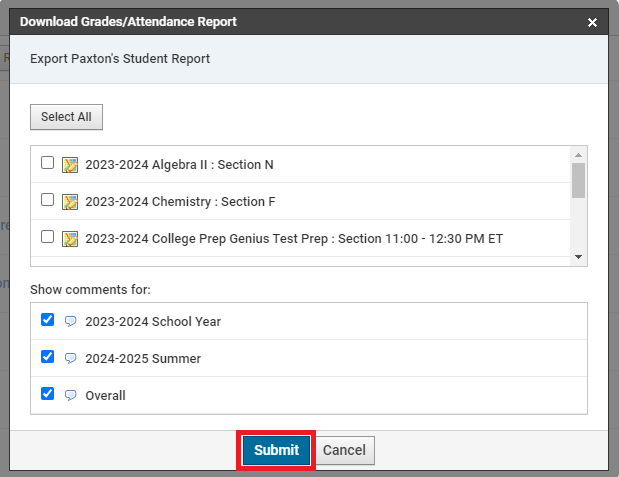
In the pop-up window, select all live courses you wish to include in the grade report.
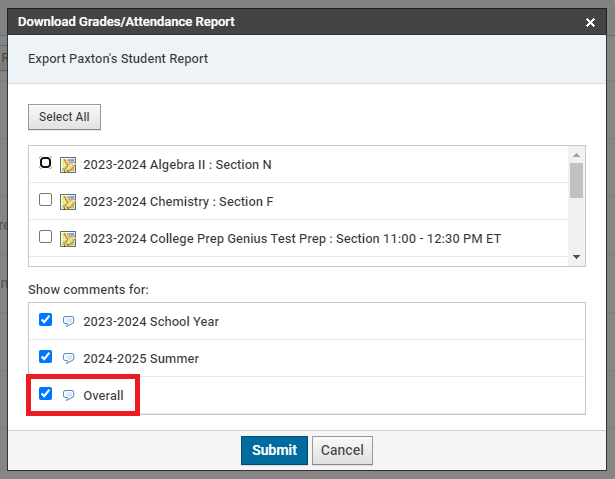
Include Comments (Optional)
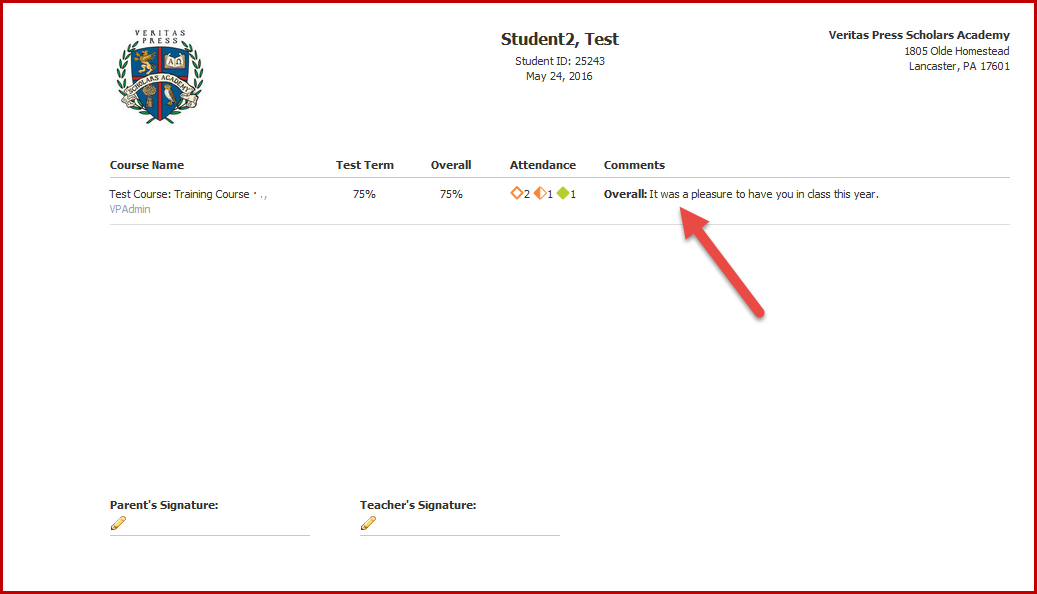
To include the Overall Comment on the report card when printing, select “Overall.”
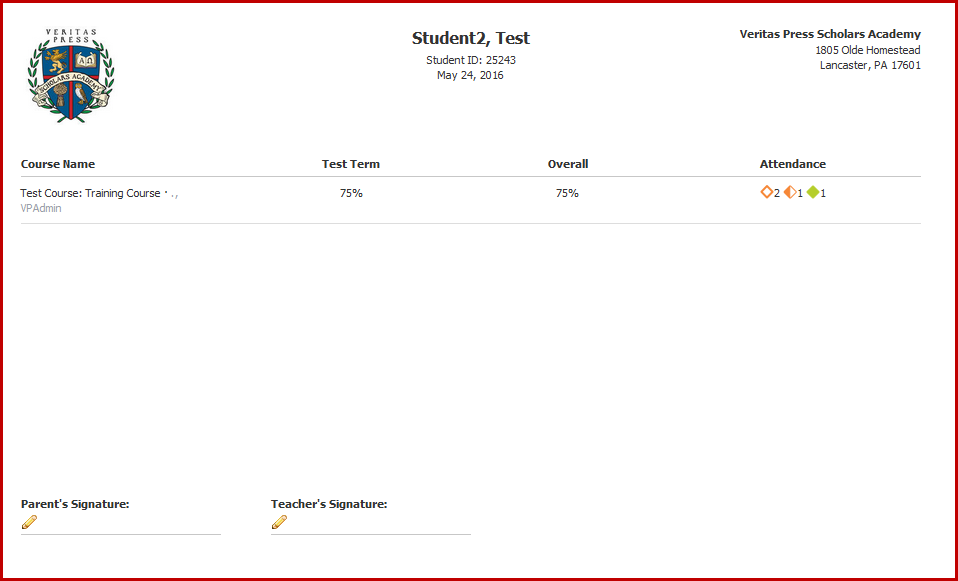
It is important to note that only Overall comments are included on the final report card; comments entered for individual quarters will not print.
Example: Report Card with Overall Comment.
Example: Report Card without an Overall comment.
Submit Selection
After making all necessary selections, click “Submit.”
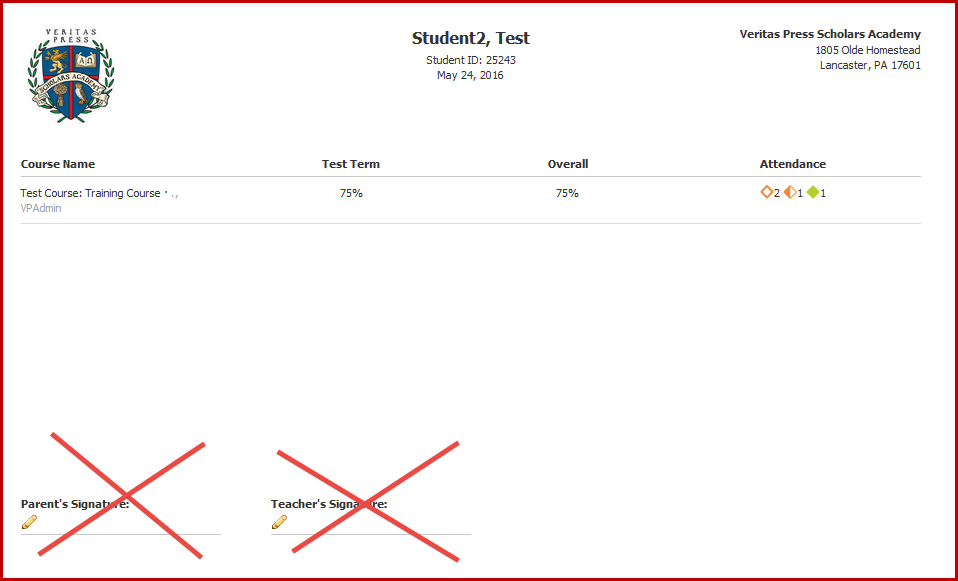
Since the “Request for Parent and Teacher Signature” section is required and cannot be removed from VSA Report Cards, you will need to crop the image if you prefer to exclude it.
VSA will send official, signed yearly Grade Reports for all Diploma courses (Live, Self-Paced, You Teach) to students by August 8th. Grades 9-12 calculate the GPA. Graduating seniors also get an official transcript of all secondary courses. Visit our website for VSA Diploma Program details.
Printing Assignments
Select the Student
Log in to your parent Schoology account and choose the student whose assignments you wish to print.
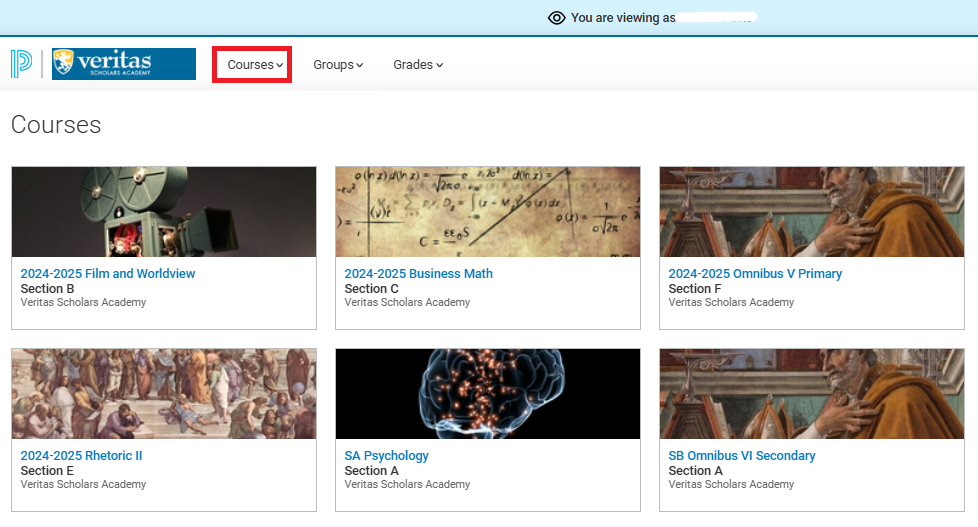
Choose the Course
From the top left of the screen, click “Course” and select the specific course containing the student-submitted assignments you want to print.
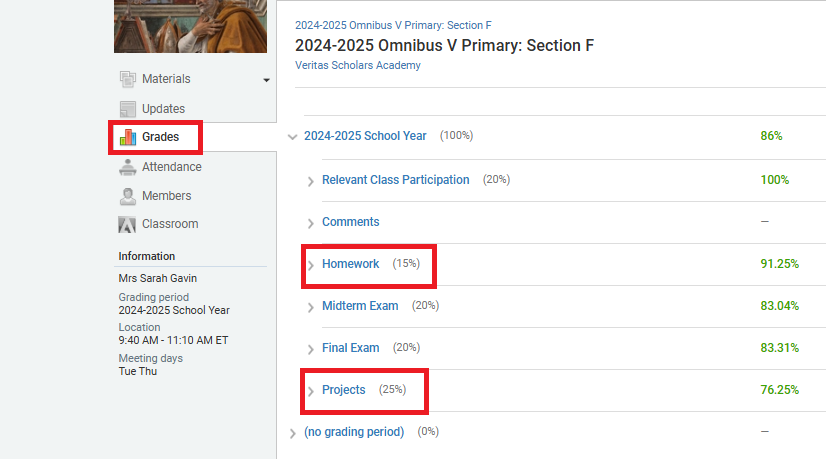
Each course features a left-side menu with the “Grades” option. Submitted assignments for live courses are categorized under “Homework” and “Projects.”
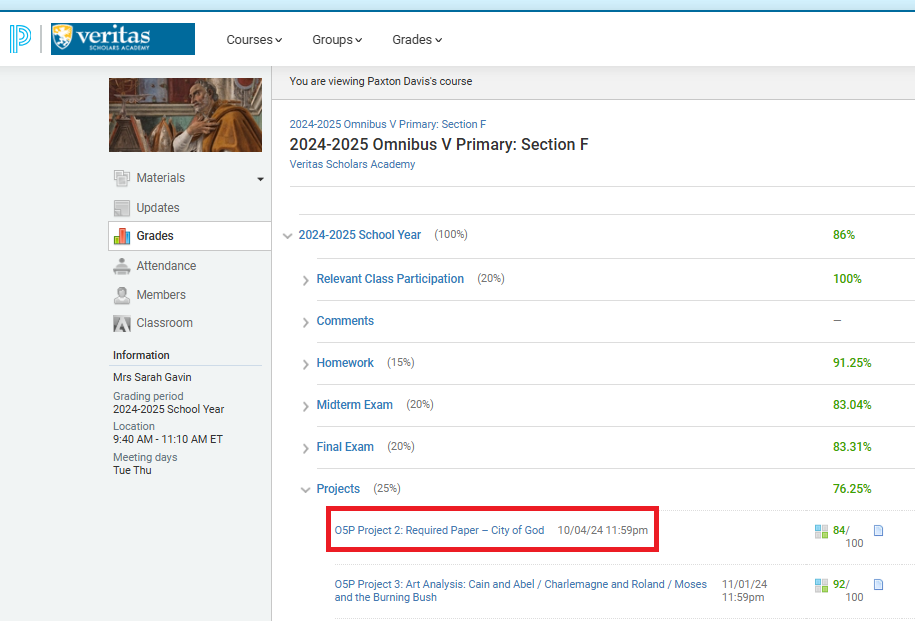
Access the Assignment
Click on the title of the homework assignment or project you intend to print.
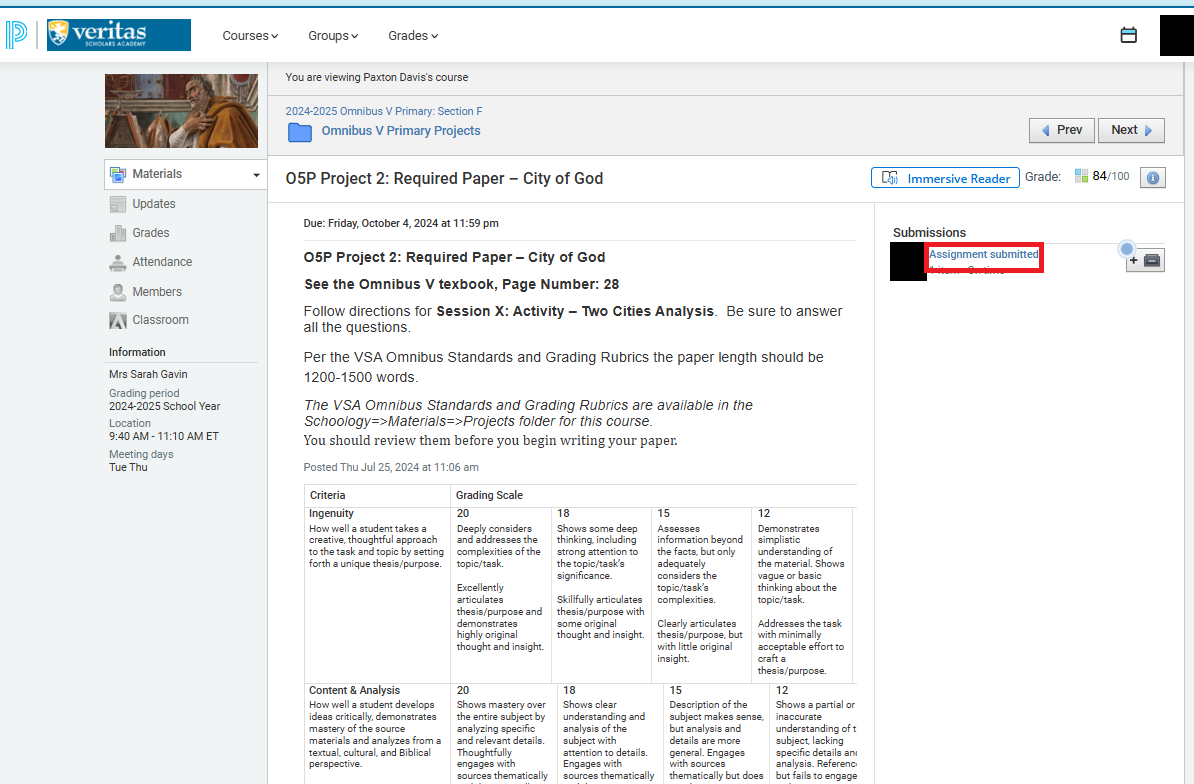
Locate the Submitted Assignment
On the right side of the grading rubric, click the “Assignment Submitted” link.
Note: If this link is not present, the student has not submitted the assignment.
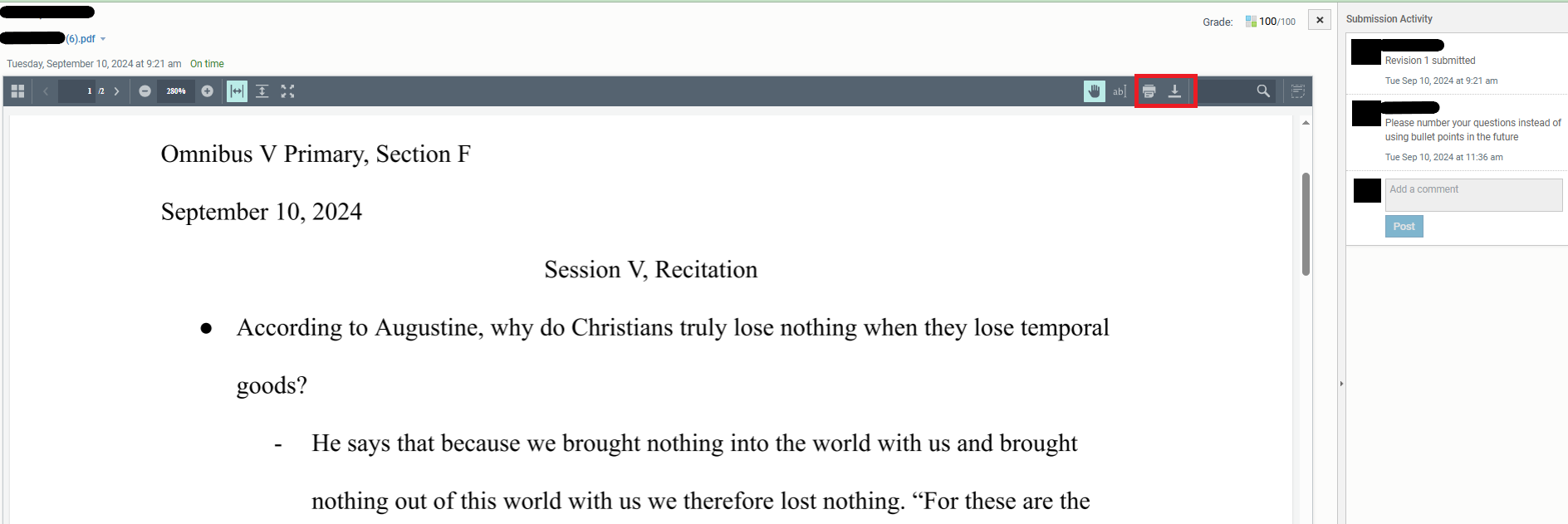
Print or Download
A new tab will open, displaying the submitted assignment. The top menu bar of this tab provides options to either print or download the assignment.
If you run into trouble at any step, our team is glad to help.
Reach us at 717-519-1974 or 800-922-5082, or visit www.VeritasPress.com.
Have questions? Talk to an expert for free!
Our Family Consultants are here to help! Fill out the form below to schedule a quick call for free.